Compare Cards Tool
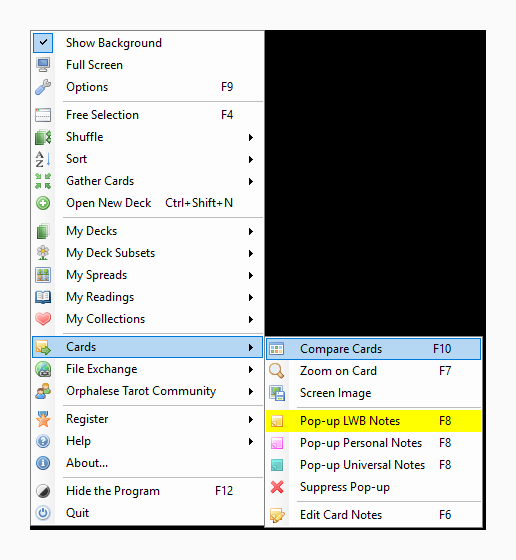
The Compare Cards feature is launched by selecting Compare Cards off the Cards menu or using the F10 shortcut key.
It allows you to compare all the cards with a given index number in your deck folders. The value of this obviously consists in being able to compare all the cards that correspond to, say, Judgement or the Five of Swords. The feature is therefore perfectly designed for use when comparing decks based on compatible numbering systems.
The tool consists of two screens, which you can toggle between by clicking on the tabs at the top. The first is the Compare Cards tab:
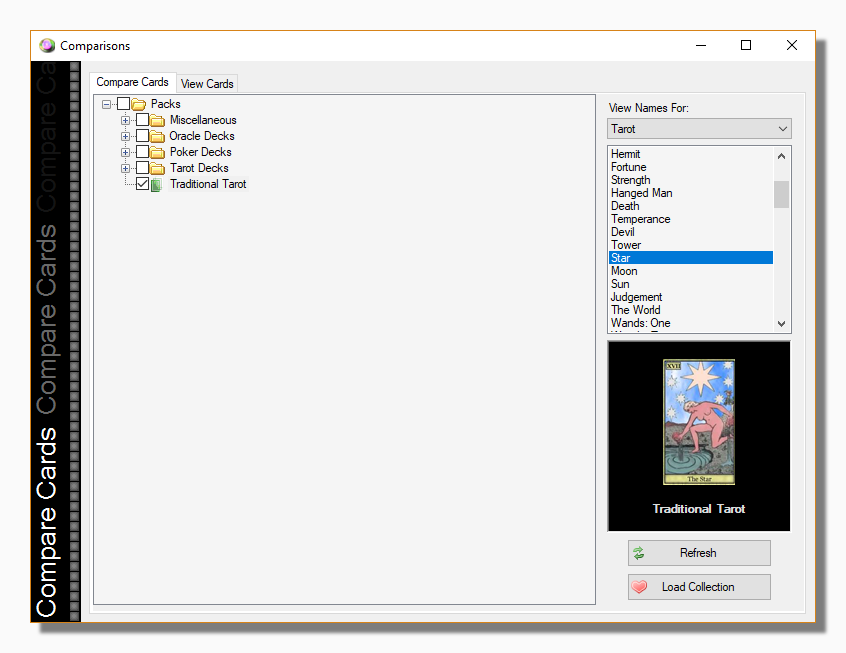
This lets you select the decks that you are interesting in viewing by ticking the boxes in the tree structure on the left, and then select the card that you want to compare from the list on the right.
Tip: When selecting from the tree you will find that ticking in the box next to a folder symbol automatically selects all the decks contained in that folder and its subdirectories. This makes it easier to select all the decks in a particular category, assuming you have organised your decks into sub-folders.
|
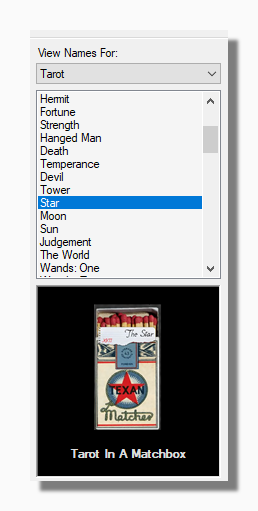
The Card List lets you select a Deck Schema to help you choose the card you want to compare, for example the Tarot Schema for comparing Tarot Decks.
Below the list is a preview window that shows the card corresponding to the selected index for the deck currently selected in the tree on the left.
Tip: When you select a different deck in the deck tree it changes the preview window, but please note that just clicking on a deck in the tree is not enough to include it in the comparison. To do that you have to check its box.
|
| This button reloads the tree and unchecks all the decks you selected. |
| This buttons lets you load a saved Collection. If you click on this link you will be invited to browse for one of your collections. On selecting one all the decks which it comprises are automatically selected in the tree for comparison. |
The other screen shows the cards that correspond to your selection:
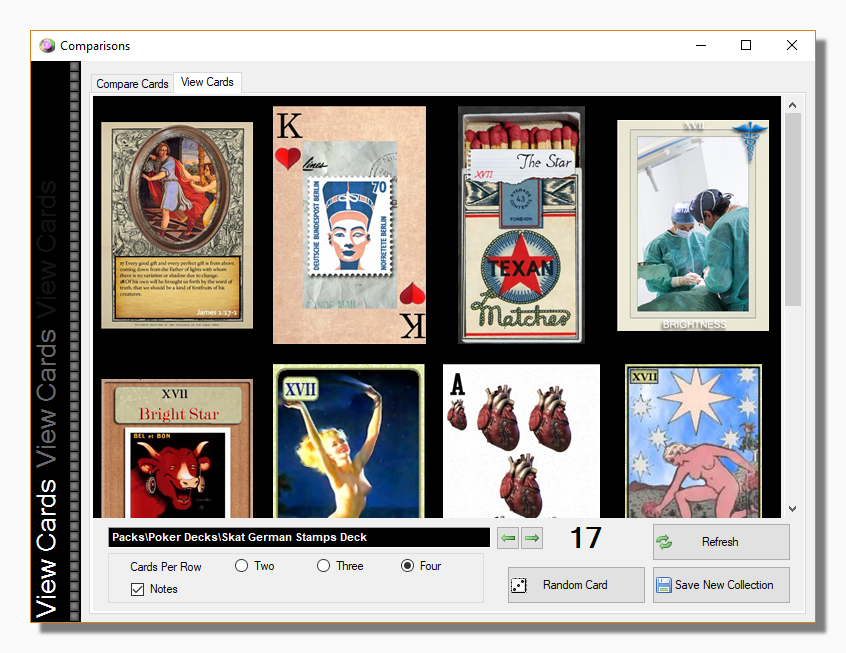
If the selected card does not exist in any given deck, it simply does not appear. The cards might take a few seconds to show as the image has to be created according to your choices. An hourglass appears while this is being generated. The image is also regenerated when the form is resized. This means you can maximize the form if you wish to see the cards in more detail.
| The back and forward arrows let you to move between the cards in the decks without going back to the first tab to change the selection. |
| The dice button lets you change the current card index at random. |
| This button lets you save the current selection of decks as a new Sequential Collection, which is obviously useful if you have selected the decks by manually checking them in the tree rather than loading a collection. |
Tip: You can switch to any deck by clicking on it in the card viewing screen.